JVM Version Configuration in Android Development: Toolchain, Compatibility, jvmTarget, and JAVA_HOME Explained
Japanese version: This article is also available in Japanese on Zenn.
Android app builds involve a variety of JDK (Java Development Kit) version settings — such as Toolchain, Target Compatibility, Source Compatibility, Kotlin jvmTarget, and JAVA_HOME. The Android official documentation1 organizes the relationships between these settings in a diagram like the one below. At least for me, it was not something I could easily grasp at first glance.
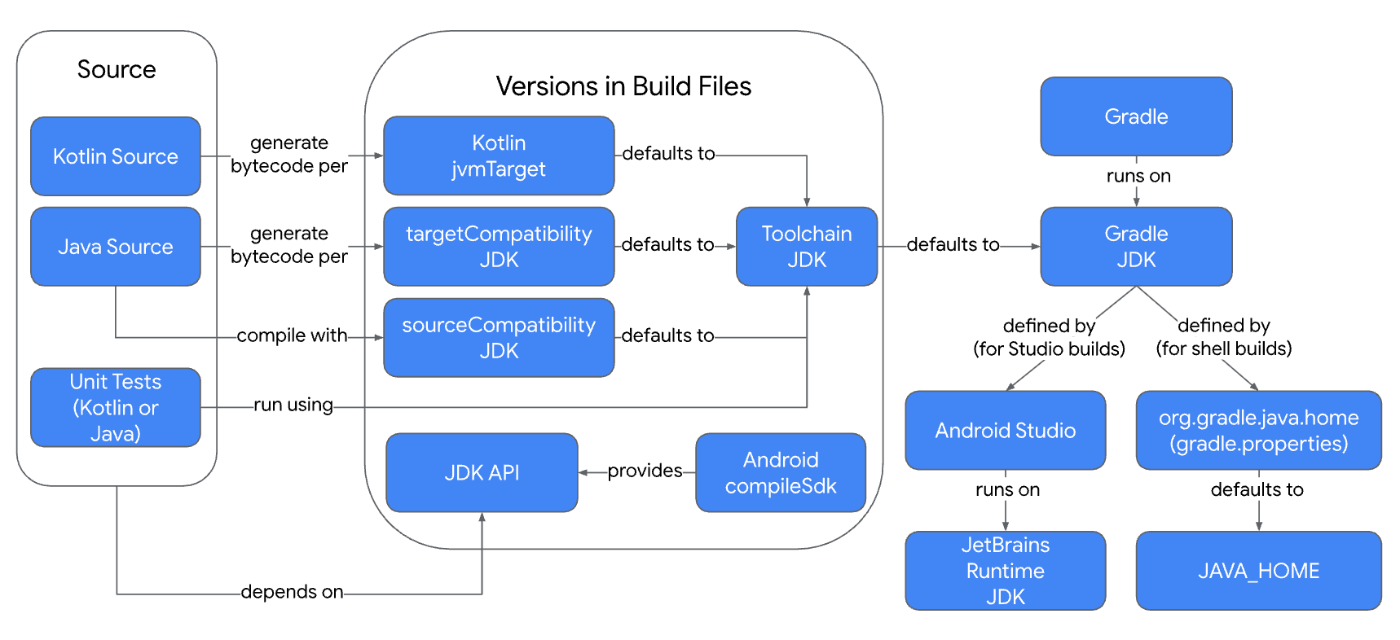
In this article, I’ll break down the roles and differences of JVM version-related settings in Android development.
Two JDKs in the Android Build
The first key point to understand is that there are two types of JDK used in Android app builds: “the JDK used to run Gradle” and “the JDK used to compile Java/Kotlin code.” Referring again to the Android official documentation diagram, the part outlined in blue corresponds to the former (JDK for running Gradle), and the part in red corresponds to the latter (JDK for compilation).
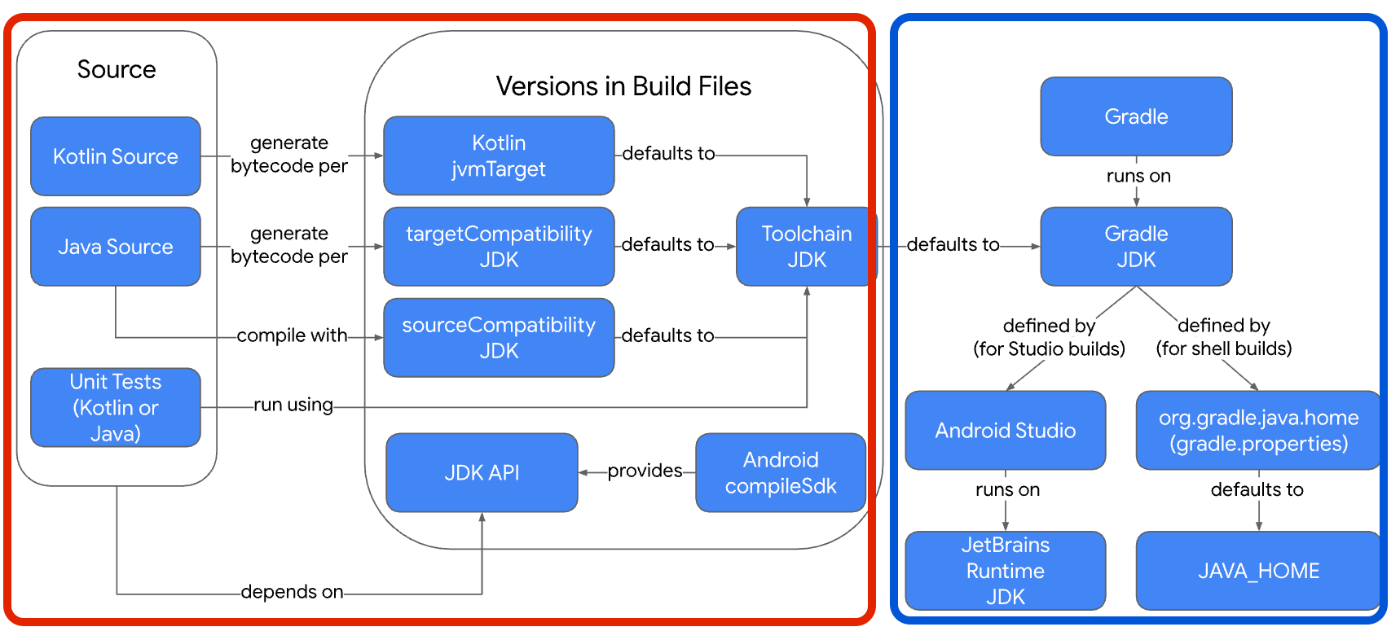
These two JDKs can be thought of as essentially independent. For example, it is common to use JDK 17 to run Gradle while using JDK 11 to compile Java/Kotlin code.
However, as shown in the diagram above, the Toolchain JDK defaults to using the Gradle JDK. In other words, unless explicitly configured via Toolchain, the JDK used for Gradle is also used as the compilation JDK — a dependency that does in fact exist. This is one source of confusion, and I’ll explain it in more detail in the Toolchain section below.
Of the two JDKs, let’s start with the simpler one: “the JDK for running Gradle.”
JDK Version Settings for Running Gradle
The “JDK for running Gradle” refers to the JDK used when executing various Gradle tasks such as building the Android app, running tests, running Lint, and installing to devices or emulators. In other words, since build tools like Gradle and Gradle Plugins are themselves written in JVM languages (Java, Kotlin, Groovy), this JDK is what runs them.
There are two main ways to run Gradle tasks:
- Via Android Studio (IDE)
- Via the terminal (CLI)
Here’s how the JDK is determined in each case.
When Running via IDE (Android Studio)
The “Gradle JDK” specified in Android Studio’s settings (Settings > Build, Execution, Deployment > Build Tools > Gradle) is used.2
When Running via CLI (Terminal)
When running Gradle tasks from the CLI, the JDK is selected in the following order of priority:
- If
org.gradle.java.home=/path/to/jdkis set ingradle.properties, that JDK is used. - If option 1 is not set, the JDK specified by the
JAVA_HOMEenvironment variable is used. - If
JAVA_HOMEis also not set, the path of thejavacommand (verifiable withwhich java) is used.
The Android official documentation recommends setting at least JAVA_HOME.3
Next, let’s look at the second JDK: “the JDK for compiling Java/Kotlin code.”
JDK Version Settings for Compiling Java/Kotlin Code
The “JDK used to compile Java/Kotlin code” is the JDK used to compile the Java/Kotlin source code of the Android app.
To understand the version settings for this JDK, let’s first set Toolchain aside and explain the three settings: sourceCompatibility, targetCompatibility, and jvmTarget. These are configured in the app’s build.gradle(.kts) as follows:
android {
    compileOptions {
        sourceCompatibility = JavaVersion.VERSION_11
        targetCompatibility = JavaVersion.VERSION_11
    }
    kotlinOptions {
        jvmTarget = "11"
    }
}
sourceCompatibility
sourceCompatibility determines which version of Java syntax can be used in Java code4. For example, with sourceCompatibility = JavaVersion.VERSION_17, syntax up to Java 17 is available (though in Android, the available Java libraries also depend on compileSdk, so this isn’t universally true). This setting does not apply to Kotlin code.
sourceCompatibility does not determine the actual JDK version used for compilation. However, sourceCompatibility ≤ the actual JDK version used for compilation must hold.
targetCompatibility
targetCompatibility determines the version of the Java bytecode format produced after compiling Java code5.
In Android, Java bytecode is not executed on a standard JVM; instead, it is compiled ahead-of-time by D86 into DEX bytecode, which is then executed on the Android Runtime (ART). Therefore, targetCompatibility must be set to a value compatible with D8.
Since D8 is bundled with the Android Gradle Plugin (AGP), the available targetCompatibility values depend on the AGP version. For example, AGP 7.0 made it possible to set targetCompatibility to JavaVersion.VERSION_11.7
Like sourceCompatibility, targetCompatibility does not determine the actual JDK version used for compilation. However, sourceCompatibility ≤ targetCompatibility (≤ the actual JDK version used for compilation) must hold, because you cannot convert code that uses newer Java syntax into a bytecode format older than that syntax.
jvmTarget
jvmTarget determines the version of the Java bytecode format produced after compiling Kotlin code — essentially the Kotlin equivalent of targetCompatibility.
This also does not determine the actual JDK version used for compilation, but jvmTarget ≤ the actual JDK version used for compilation must hold.
In general, it is common practice to set sourceCompatibility, targetCompatibility, and jvmTarget to the same version.8
As we’ve seen, none of these three settings actually determine the JDK version used for compilation.
Gradle added Toolchain support in version 6.7.19, but before Toolchain was introduced, the “JDK version for running Gradle” was used as the “JDK version for compilation.” In other words, while I mentioned at the beginning of this article that these two JDKs are functionally independent, in practice there was no choice but to use the same JDK for both.
This problem is solved by the introduction of Toolchain.
What is Toolchain?
Toolchain serves multiple purposes, but in the context of Android builds, the following three roles are important:
- Provide default values for
sourceCompatibility,targetCompatibility, andjvmTarget. - Explicitly specify the JDK version used to compile Java/Kotlin code.
- Automatically detect and install (if needed) the appropriate JDK from the local environment.
1. Providing Default Values for sourceCompatibility, targetCompatibility, and jvmTarget
By using Toolchain, you can set default values for sourceCompatibility, targetCompatibility, and jvmTarget, eliminating the need to specify them individually.
For example, in build.gradle.kts, you can replace them as follows:
java {
    toolchain {
        languageVersion = JavaLanguageVersion.of(11)
    }
}

// Previous settings:
// android {
//     compileOptions {
//         sourceCompatibility = JavaVersion.VERSION_11
//         targetCompatibility = JavaVersion.VERSION_11
//     }
//     kotlinOptions {
//         jvmTarget = "11"
//     }
// }
2. Determining the JDK Version Used to Compile Java/Kotlin Code
While sourceCompatibility, targetCompatibility, and jvmTarget did not specify the actual JDK version used for compilation, Toolchain makes it possible to do so explicitly.
For example, in the past, setting targetCompatibility = JavaVersion.VERSION_11 did not guarantee that JDK 11 would be used for compilation (though it did require JDK 11 or higher).
With Toolchain, writing languageVersion = JavaLanguageVersion.of(11) ensures that the specified JDK version is used for compilation.
This makes it easy to run Gradle itself on JDK 17 while compiling with JDK 11.
3. Resolving and Installing the JDK for Compilation
Previously, the JDK for compilation was the one specified by JAVA_HOME or the path set in the IDE. With Toolchain, how is the JDK path determined?
First, Toolchain has a mechanism called Auto-detection that automatically searches for and selects a JDK installed on the local machine10.
The JDKs auto-detected by Toolchain can be listed with the ./gradlew -q javaToolchains command.11
Furthermore, if no matching JDK version exists on the local machine, it is possible to have one automatically installed (Auto-provisioning)12. However, to enable Auto-provisioning, you need to introduce a Toolchain Resolver Plugin13 such as the Foojay Toolchains Plugin14.
We’ve now covered all the major JDK version settings — Toolchain, Target Compatibility, Source Compatibility, Kotlin jvmTarget, and JAVA_HOME.
If you have any questions or corrections about this article, please let me know in the comments.